![dooap-logo-black-1.jpg]](https://help.dooap.com/hs-fs/hubfs/dooap-logo-black-1.jpg?height=40&name=dooap-logo-black-1.jpg)
Instead of opening and editing one record at a time, Admin users can update many records at once across four entity types: companies, vendors, users, and user groups.
This is useful for changes that affect a large number of records the same way — for example, assigning a new default AP handler to a batch of vendors, or updating a role across many users at once.
Where to find it
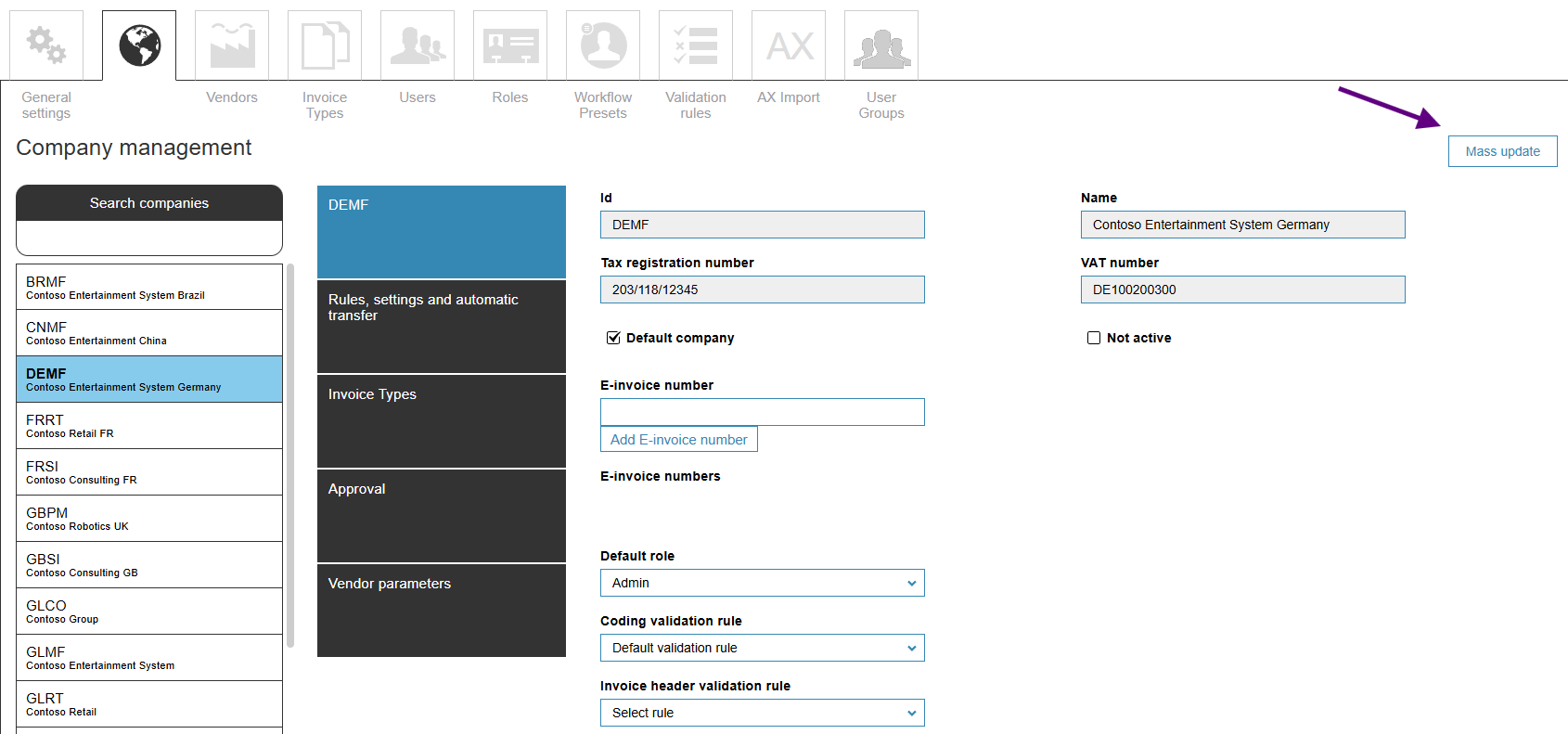
You can find the button in the upper-right corner on all of these pages:
- Companies — Admin > Companies
- Vendors — Admin > Vendors
- Users — Admin > Users
- User Groups — Admin > User Groups
Example:
How to mass-update records
- Go to the relevant admin list (Companies, Vendors, Users, or User Groups). i.e what data you want to update.
- Select the checkboxes for the records you want to update.
- Choose the mass update action, then pick the field(s) you want to change and enter the new value.
- Review the affected records and confirm the update.
Note: Mass updates apply to every selected record immediately. Double-check your selection before confirming, especially for changes that affect approval routing or vendor default settings.