![dooap-logo-black-1.jpg]](https://help.dooap.com/hs-fs/hubfs/dooap-logo-black-1.jpg?height=40&name=dooap-logo-black-1.jpg)
You can prioritize invoices in two ways:
- Per invoice: mark individual invoices as priority
- Per vendor: set a vendor as priority so that all new invoices from that vendor are automatically prioritized
Priority invoices are marked with an indicator and are shown at the top of the Next invoices list for processing.
Mark an invoice as priority
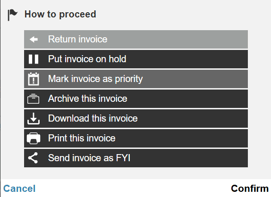
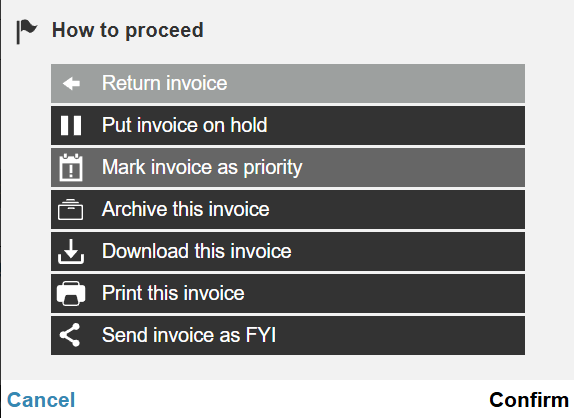
- In Active invoices, select the three dots menu
- Select Mark invoice as priority
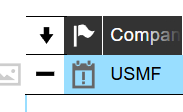
- A priority indicator will appear in the Flag column.
Mark a vendor as priority
- Navigate to Admin > Vendors
- Select the vendor
- Select Mark as priority vendor
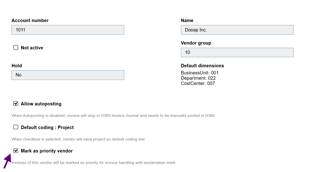
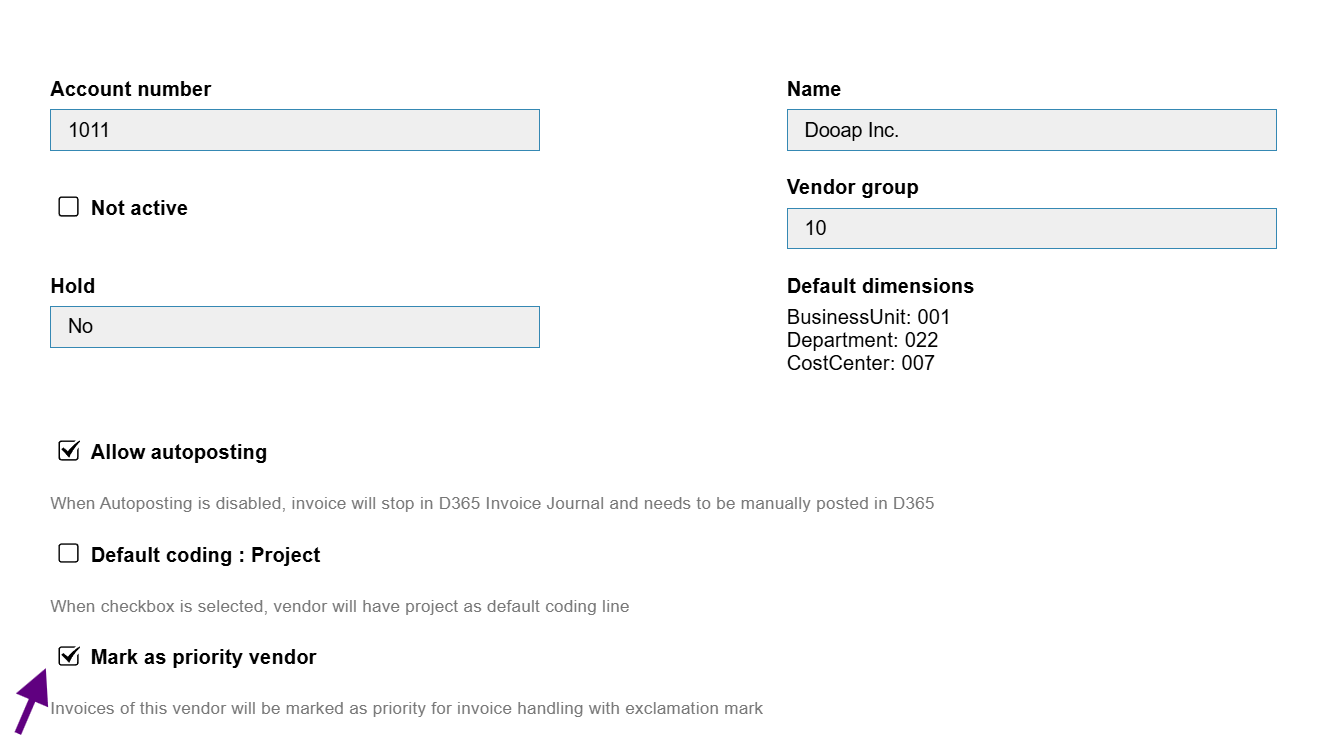
All new invoices from this vendor will automatically be marked as priority and displayed at the top of the Next invoices list.
Removing priority
- In Active invoices, select the three dots menu
- Select Semove priority from invoice and Comfirm
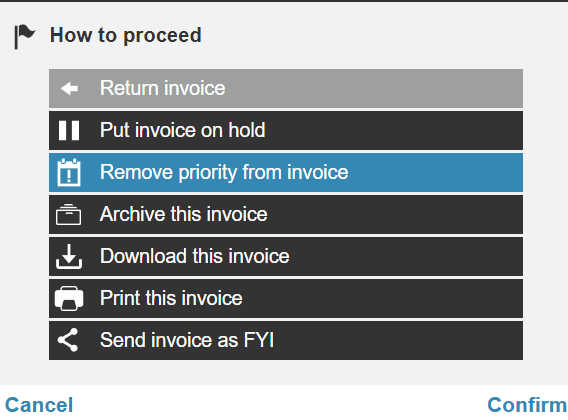
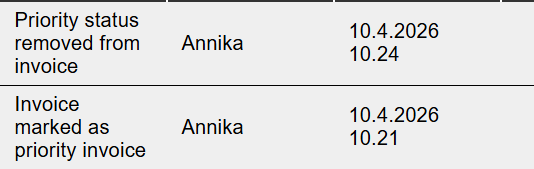
Changes to an invoice’s priority are recorded in the history log.