![dooap-logo-black-1.jpg]](https://help.dooap.com/hs-fs/hubfs/dooap-logo-black-1.jpg?height=40&name=dooap-logo-black-1.jpg)
When matching purchase orders to invoices, if there is a difference within the allowed tolerance, Dooap uses a configured charges code to post the difference automatically.
Follow the instructions below to set up the charges code in D365 and link it to Dooap.
This setup is only required if your company processes purchase order (PO) invoices.
Configuration in D365
There are two configuration options for setting up the charges code in D365. Choose the approach that best fits your company’s accounting requirements.
The charges code must be configured separately for each legal entity within Dooap’s scope.
1. Differences booked to a specific ledger account
-
Navigate to Accounts payable > Charges > Charges codes.
-
Click "+ New" to create a new charges code (name can be chosen, e.g., "PO TOL – Dooap PO Tolerance").
-
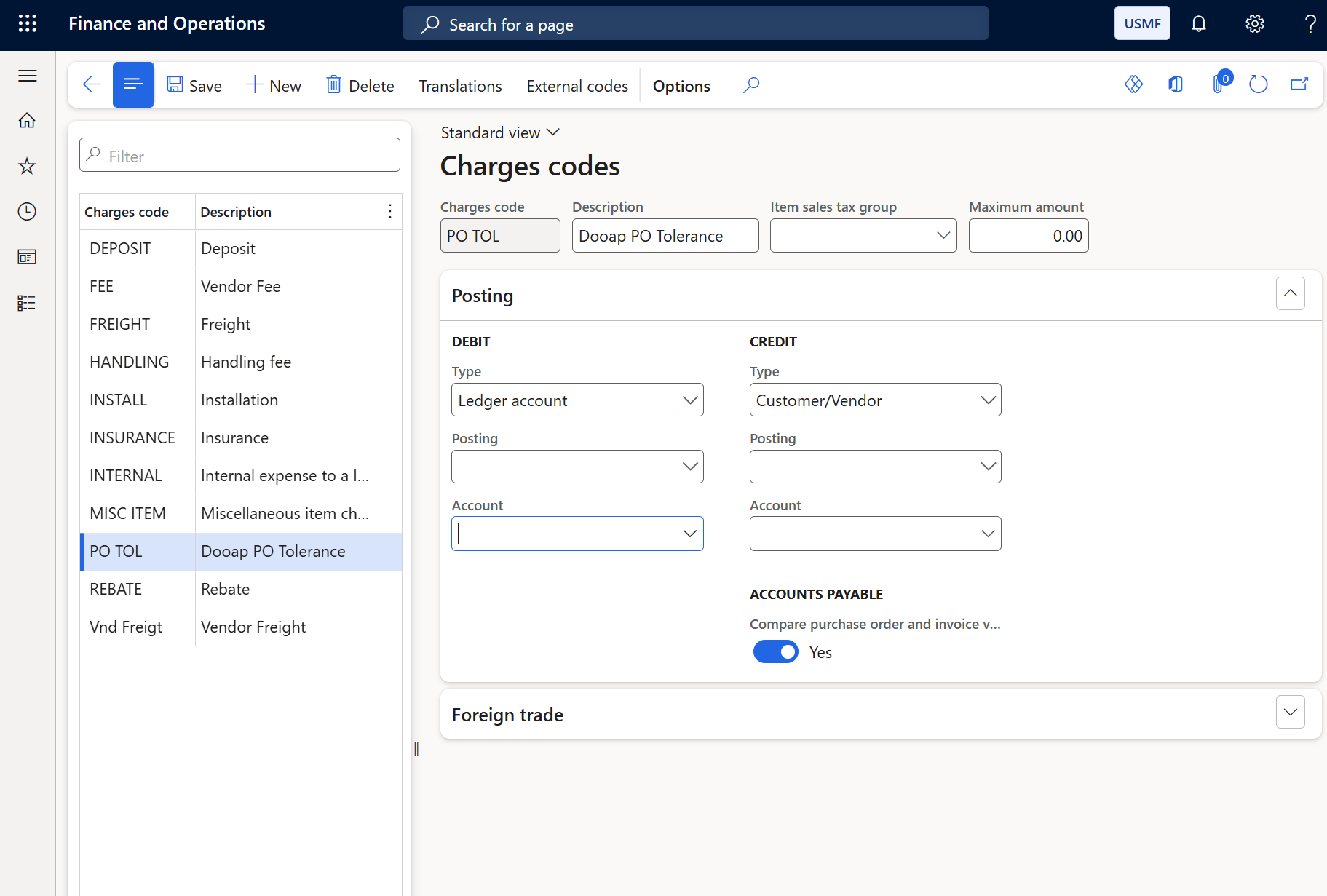
In the Posting section, :
-
Set the DEBIT / Type field to Ledger account — this must be selected before you can choose an account below.
-
Set the CREDIT / Type to Customer/Vendor.
-
-
Select the account in DEBIT / Account to specify the required ledger account where the price variance should be posted.
-
This ensures that all differences are posted directly to the defined account, independent of the item accounts.
-
- Leave the Item sales tax group field empty.
- If the field is not empty and an invoice is posted from Dooap for a vendor with a default item sales tax group, the invoice posting will trigger a tolerance error.
2. Differences booked to the account used for the initial purchase
-
Navigate to Accounts payable > Charges > Charges codes.
-
Click "+ New" to create a new charges code (name can be chosen, e.g., "PO TOL – Dooap PO Tolerance").
-
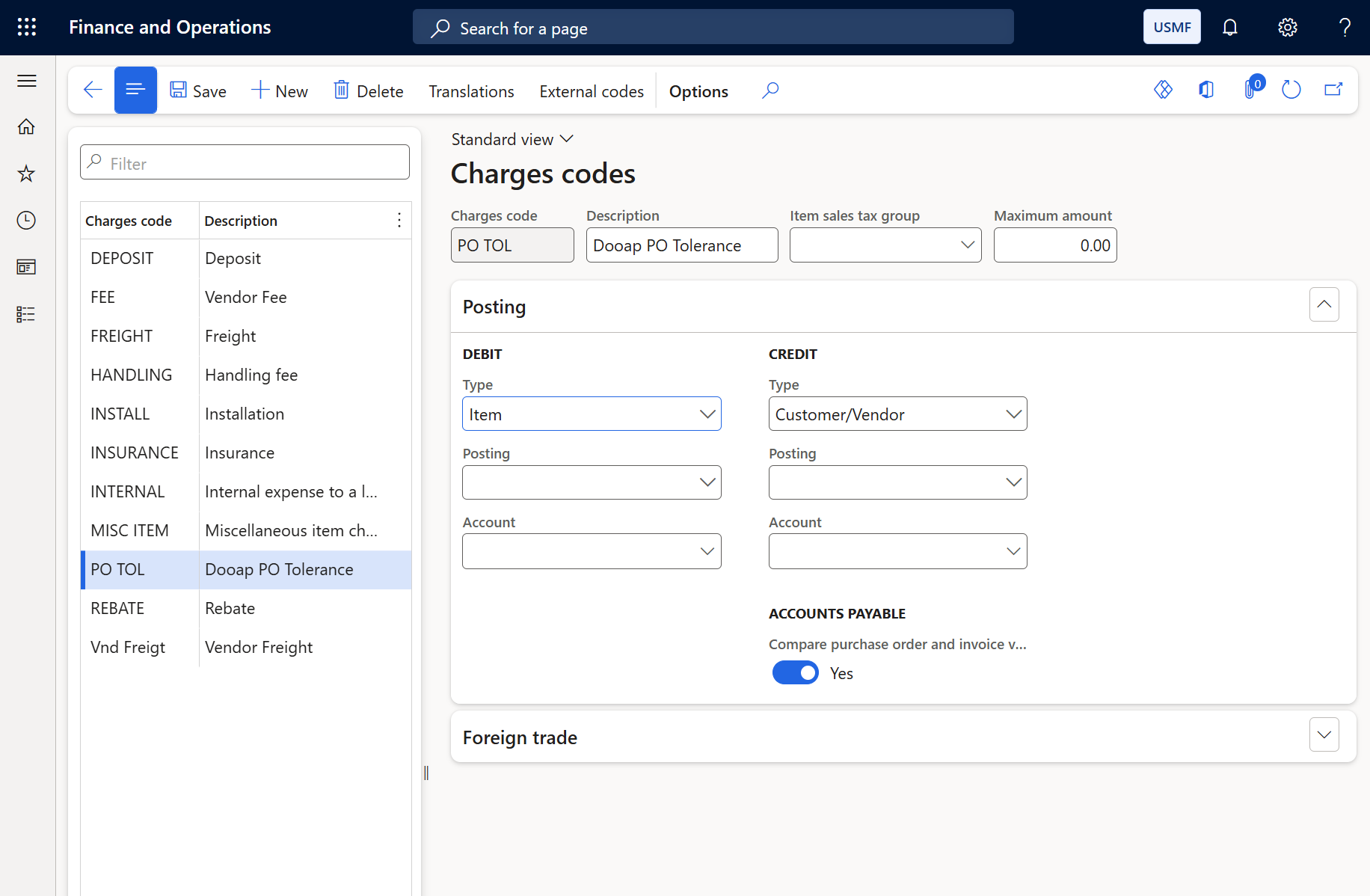
In the Posting section, :
-
Set the DEBIT / Type to Item.
-
Set the CREDIT / Type to Customer/Vendor.
-
-
Leave the DEBIT / Account account field empty, as the system derives the account from the item posting profile.
- Leave the Item sales tax group field empty.
- If the field is not empty and an invoice is posted from Dooap for a vendor with a default item sales tax group, the invoice posting will trigger a tolerance error.
Configuration in Dooap
After creating the charges code in D365, select the code for each company’s PO invoice type in Dooap Admin > Companies > Invoice Types, in the “Posting of tolerance” field.
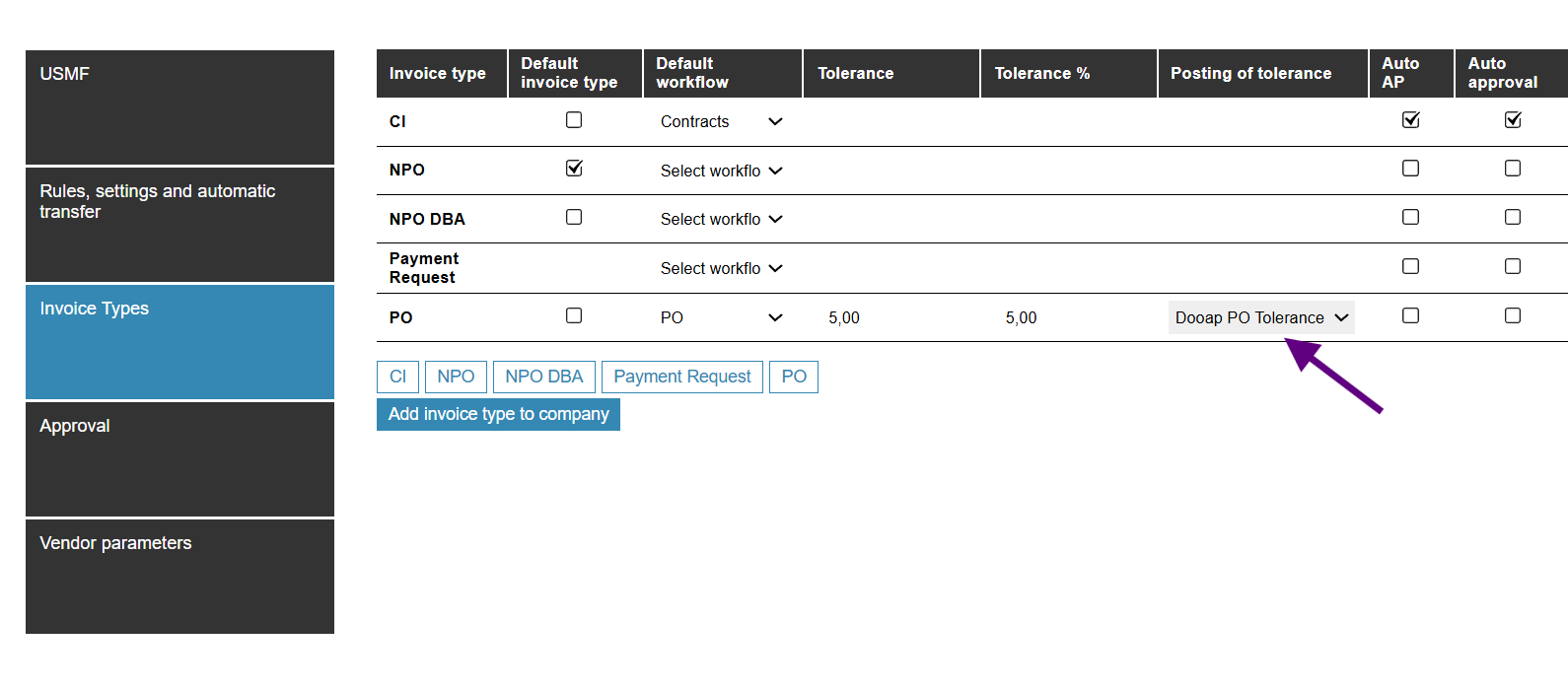
Whenever there is a difference between the PO amount and the invoice total that is within the allowed tolerance, Dooap uses this charges code for posting.