![dooap-logo-black-1.jpg]](https://help.dooap.com/hs-fs/hubfs/dooap-logo-black-1.jpg?height=40&name=dooap-logo-black-1.jpg)
To manage vendor settings, navigate to Admin > Vendors. If you have multiple companies in Dooap, you can easily switch between them using the menu located in the upper left corner.
Some of the fields are displayed in grey, since they cannot be edited in Dooap.
- Such data is imported directly from D365/AX2012, and editing should be done there if needed.
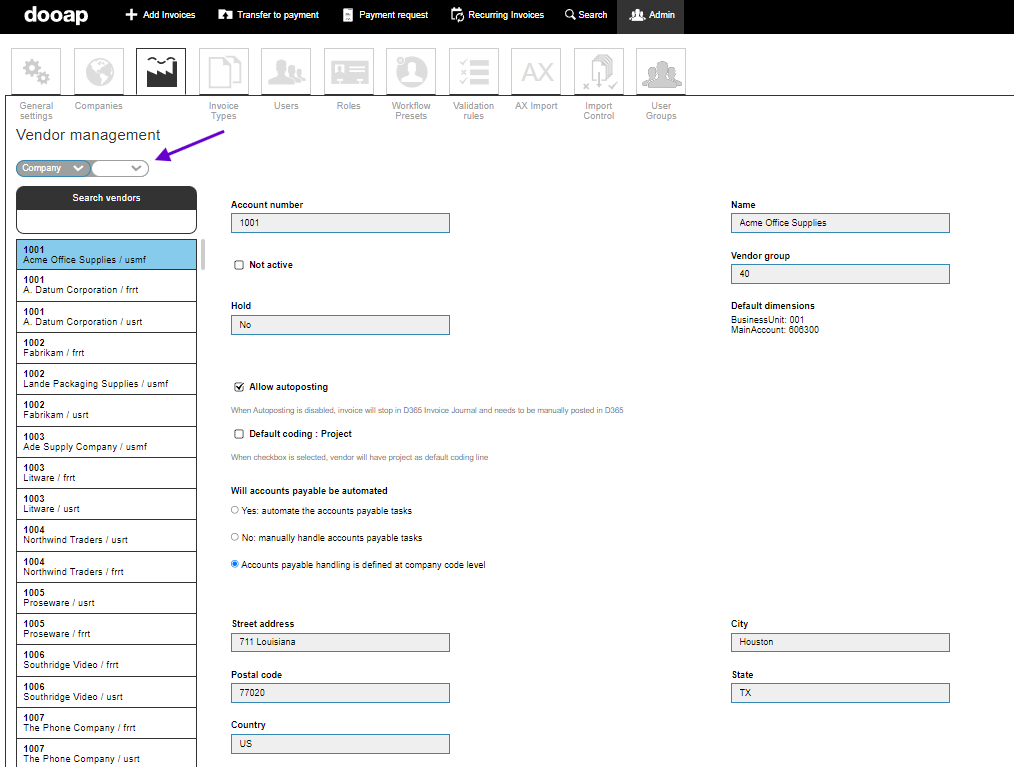
Description of the fields
| Not Active | When this is box is selected, the users will not see the vendor as an option when handling invoices. |
| Allow Autoposting | When autoposting is disabled, the invoice will stop in the Invoice Journal view in D365, and it needs to be manually posted. |
| Default coding : Project |
When checkbox is selected, the vendor will have project as default coding line. |
| Will accounts payable be automated |
Defining whether AP will be automated or not. |
| Default Currency |
When the currency segment is empty or does not exist in the invoice XML, Dooap will populate the currency to the invoice according to this field. |
| Default invoice type |
Selecting the default invoice type for the vendor. Note: When a vendor's default invoice type is set to Non-PO, Dooap will not switch the invoice type to PO if a PO number is detected on the incoming invoice. The vendor's configured default type is now respected. |
| Default workflow preset | Here you can select a workflow preset to default when handling invoices for a particular vendor, after the preset is created in Workflow Presets view. |
| Default bank account | You can select a bank account to default when handling invoices for a particular vendor (bank account information is imported from AX2012/D365). |
| AP clerk | You can select a default AP user for the vendor. |
| AP user group | You can select an AP user group as a default for a vendor. |
| Reviewers & Approvers | Specify reviewers and approvers who will appear in the workflow for a particular vendor. (Note: If there is a default workflow assigned to a vendor, that setting will override this setting). |